Themes
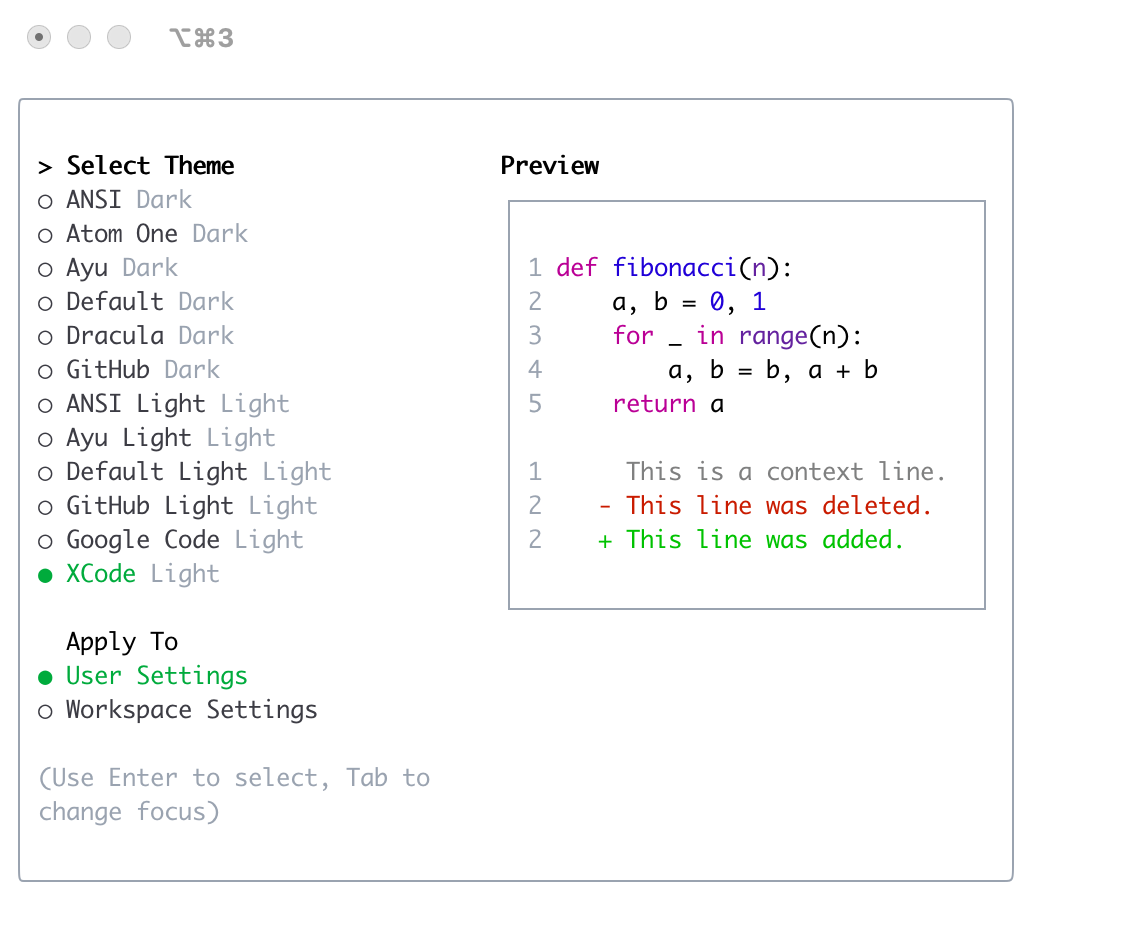
Gemini CLI supports a variety of themes to customize its color scheme and appearance. You can change the theme to suit your preferences via the /theme command or "theme": configuration setting.
Available Themes
Gemini CLI comes with a selection of pre-defined themes, which you can list using the /theme command within Gemini CLI:
- Dark Themes:
ANSIAtom OneAyuDefaultDraculaGitHub
- Light Themes:
ANSI LightAyu LightDefault LightGitHub LightGoogle CodeXcode
Changing Themes
- Enter
/themeinto Gemini CLI. - A dialog or selection prompt appears, listing the available themes.
- Using the arrow keys, select a theme. Some interfaces might offer a live preview or highlight as you select.
- Confirm your selection to apply the theme.
Theme Persistence
Selected themes are saved in Gemini CLI's configuration so your preference is remembered across sessions.
Dark Themes
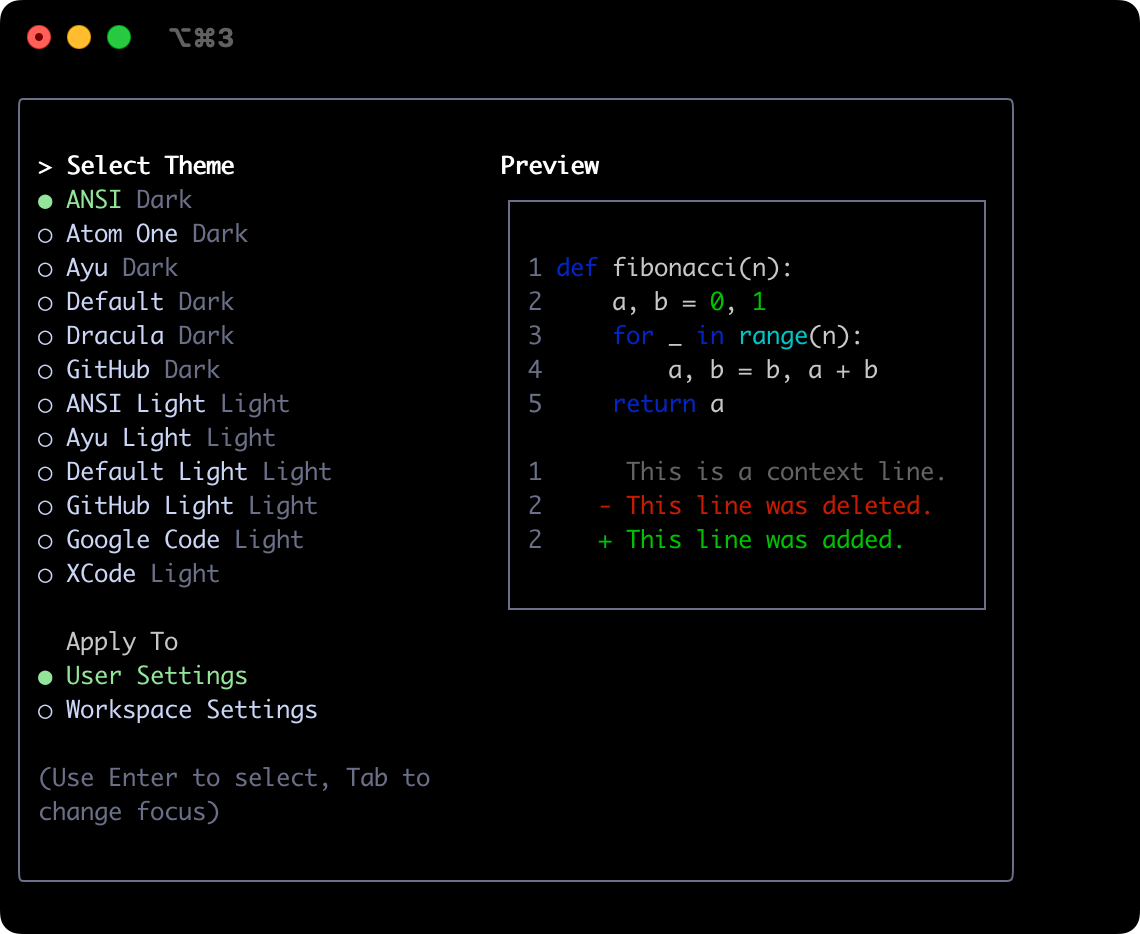
ANSI
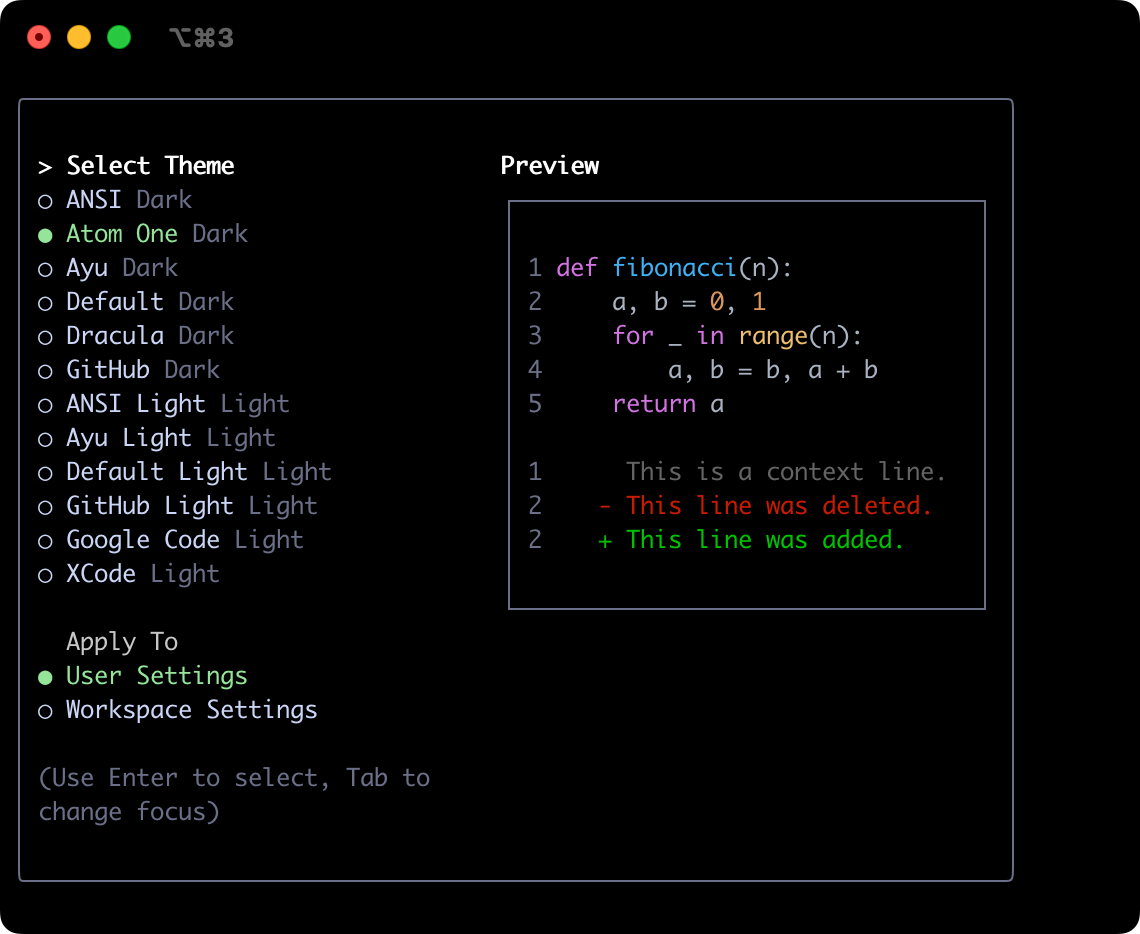
Atom OneDark
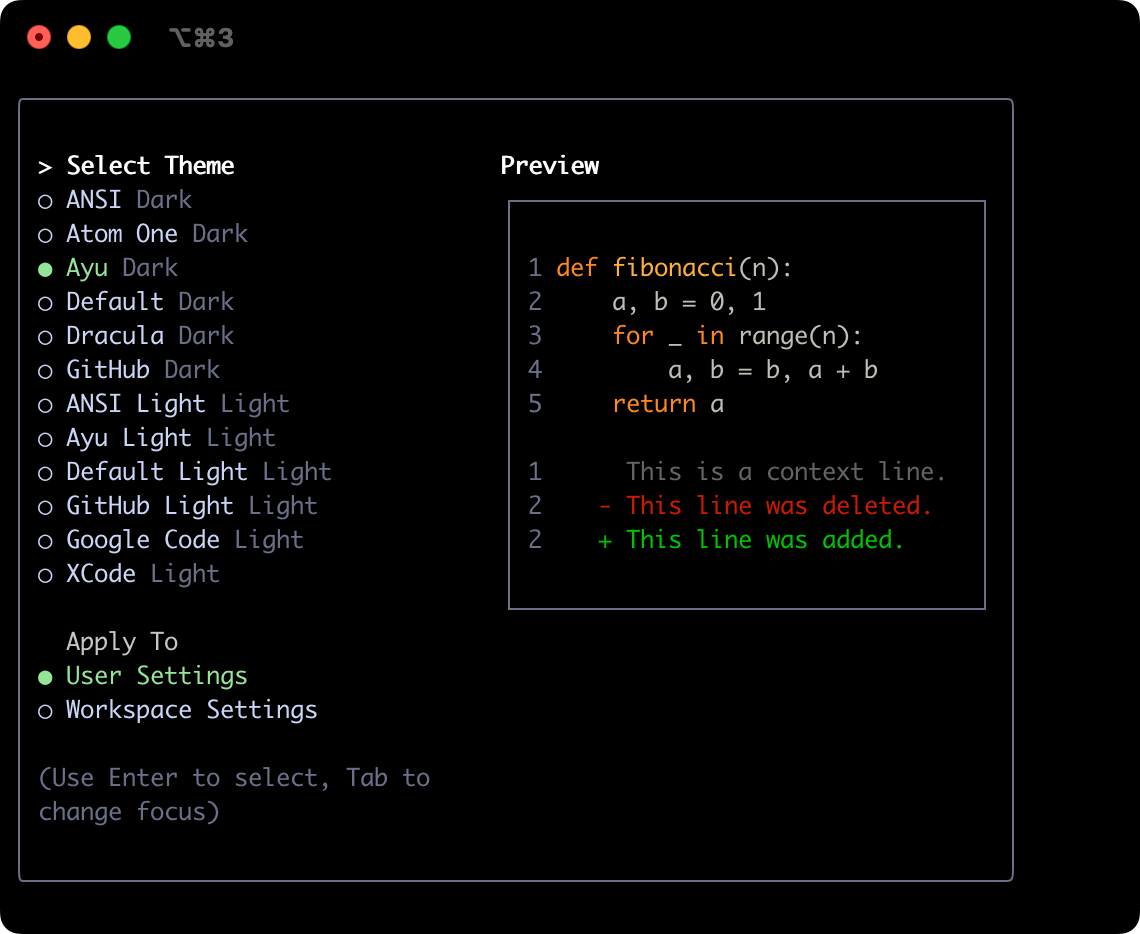
Ayu
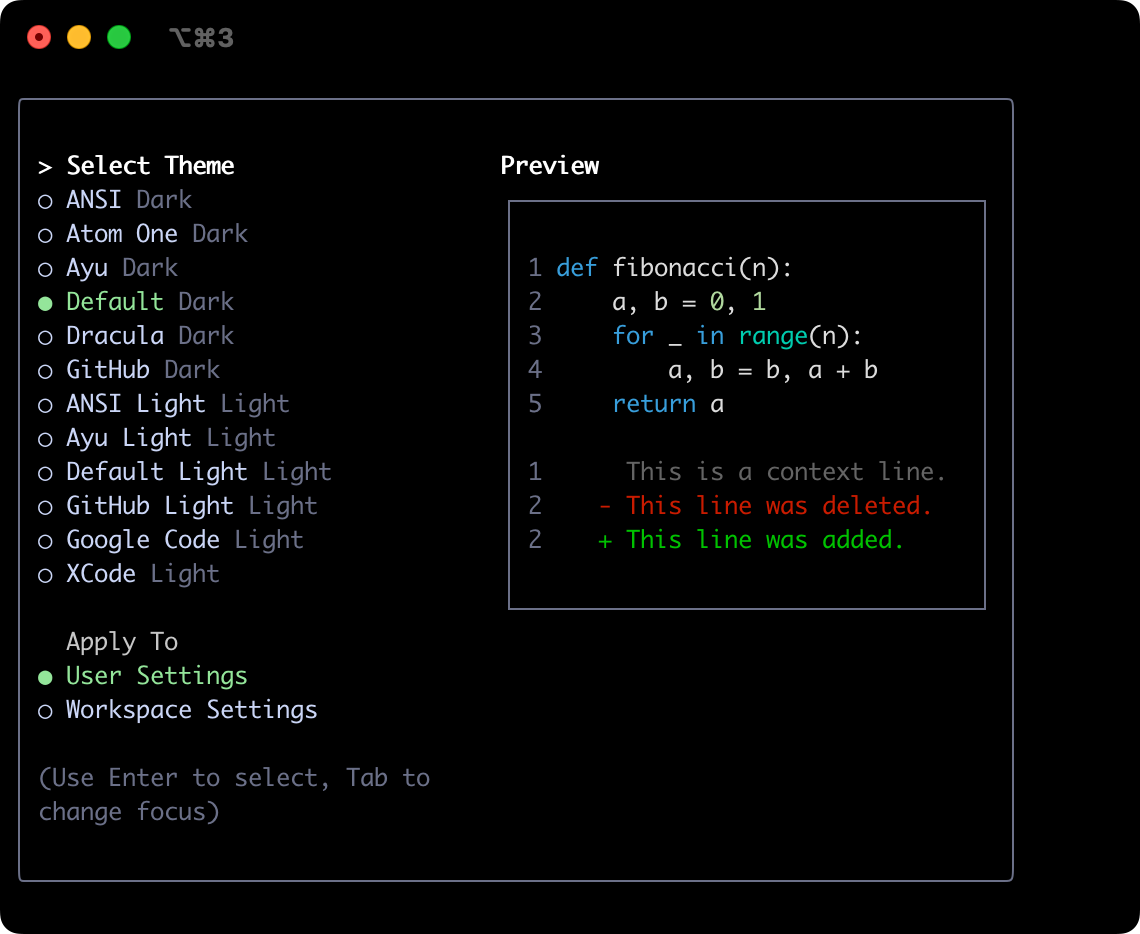
Default
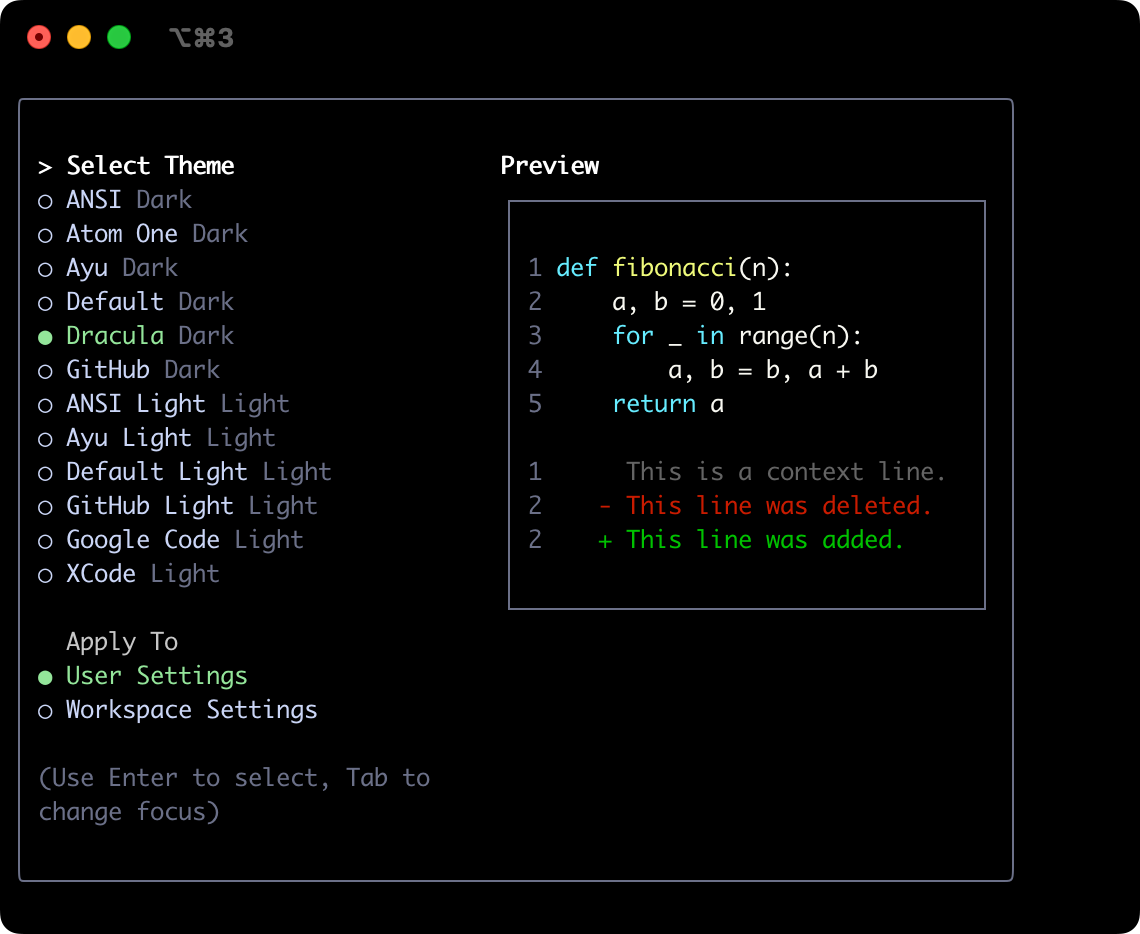
Dracula
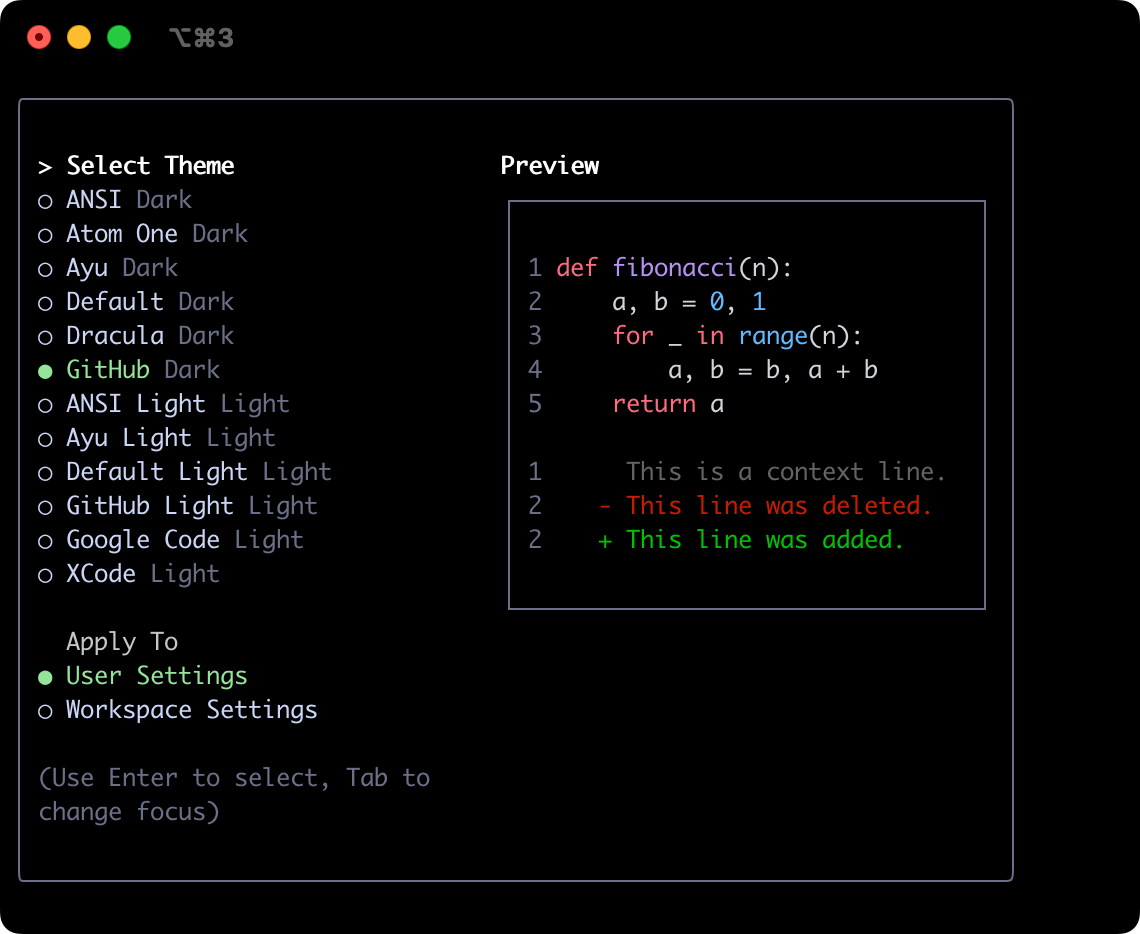
GitHub
Light Themes
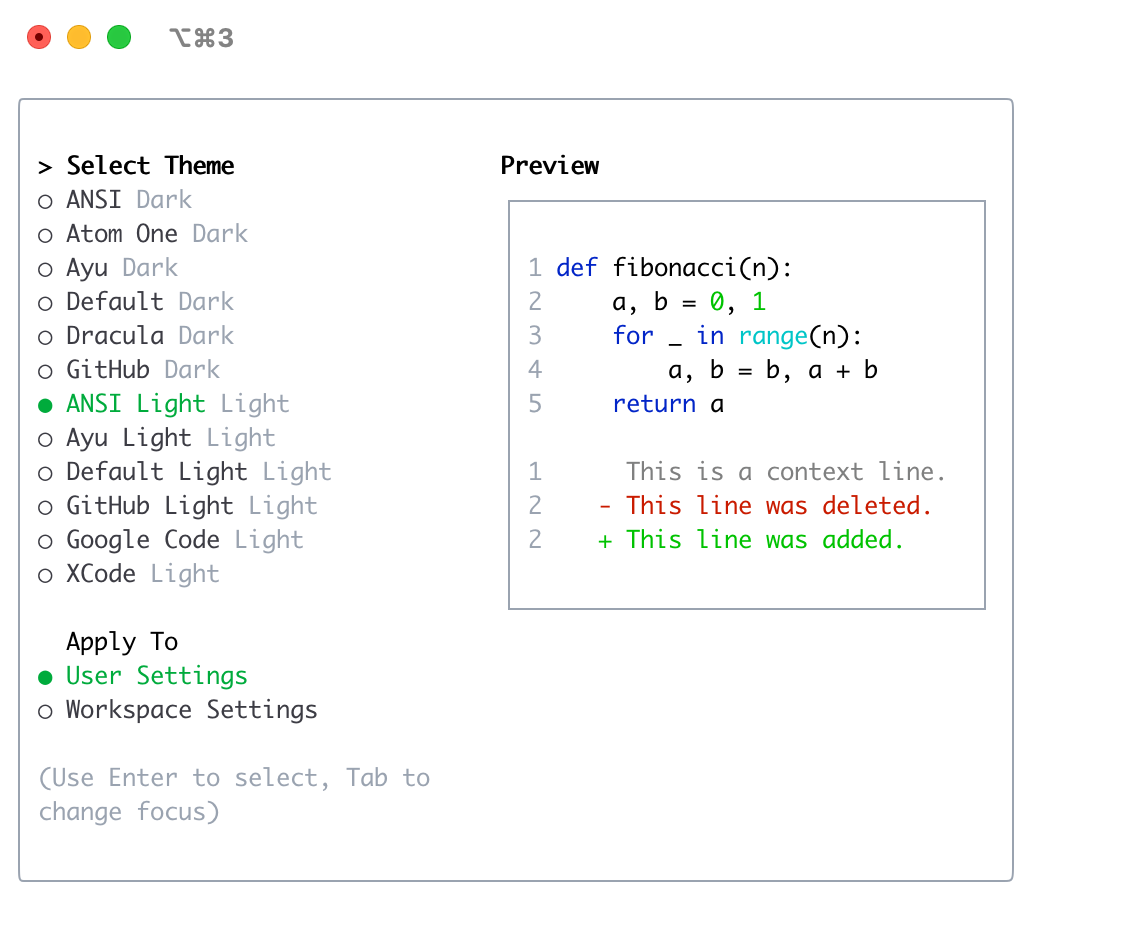
ANSI Light
Ayu Light
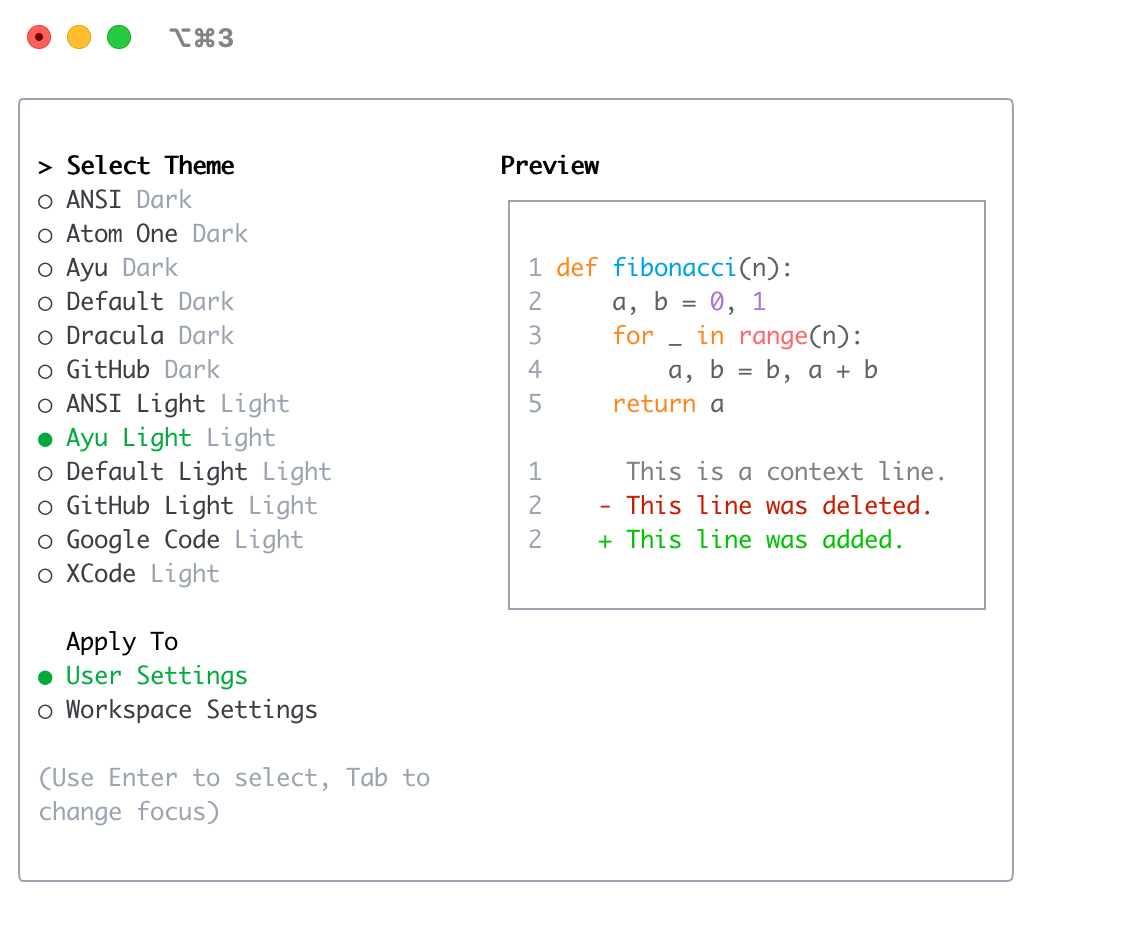
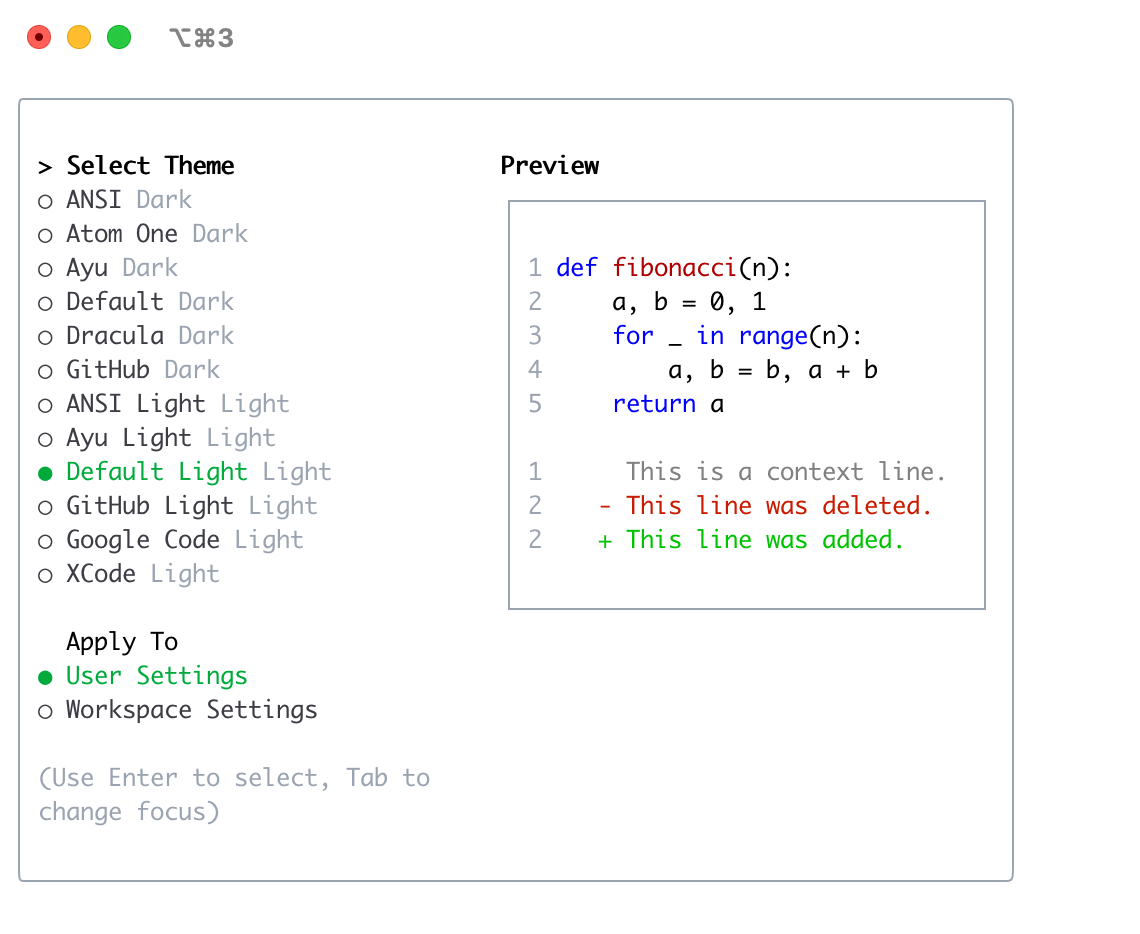
Default Light
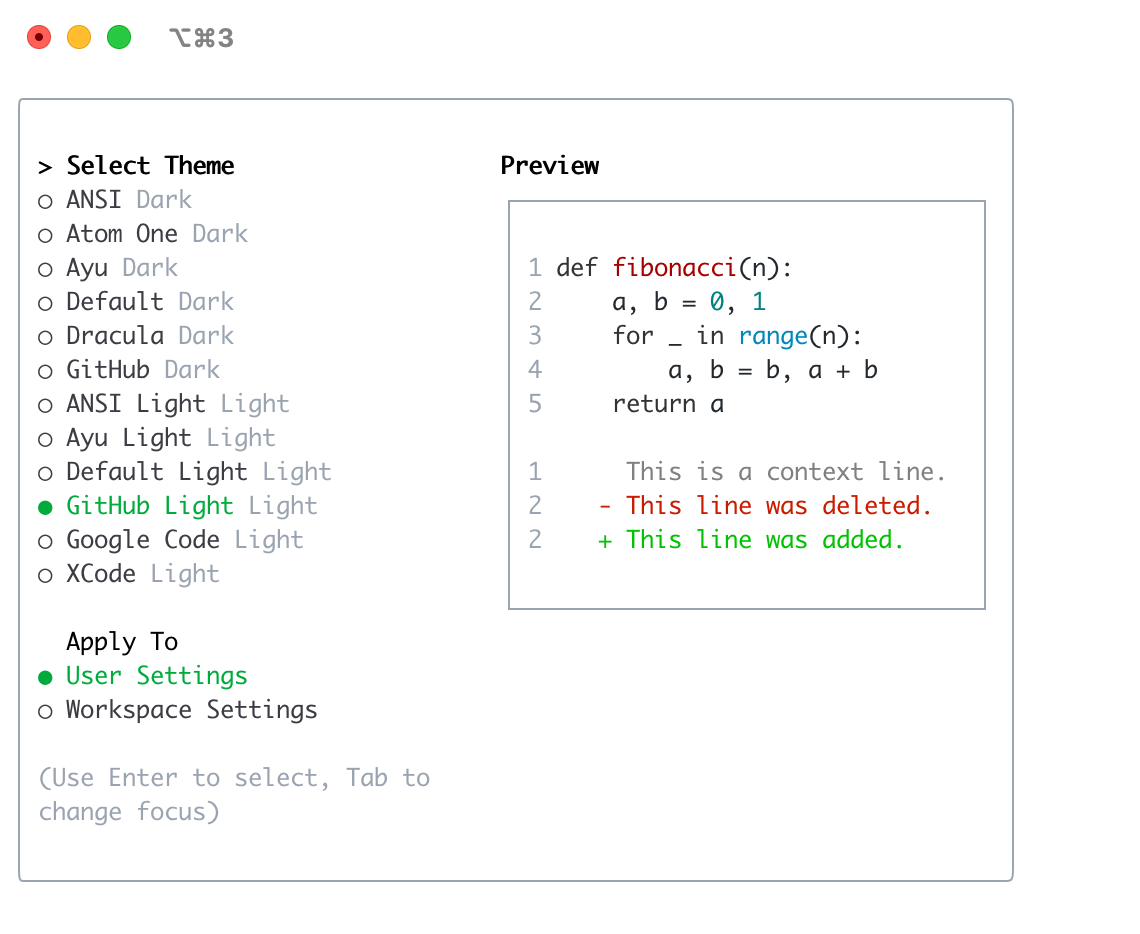
GitHub Light
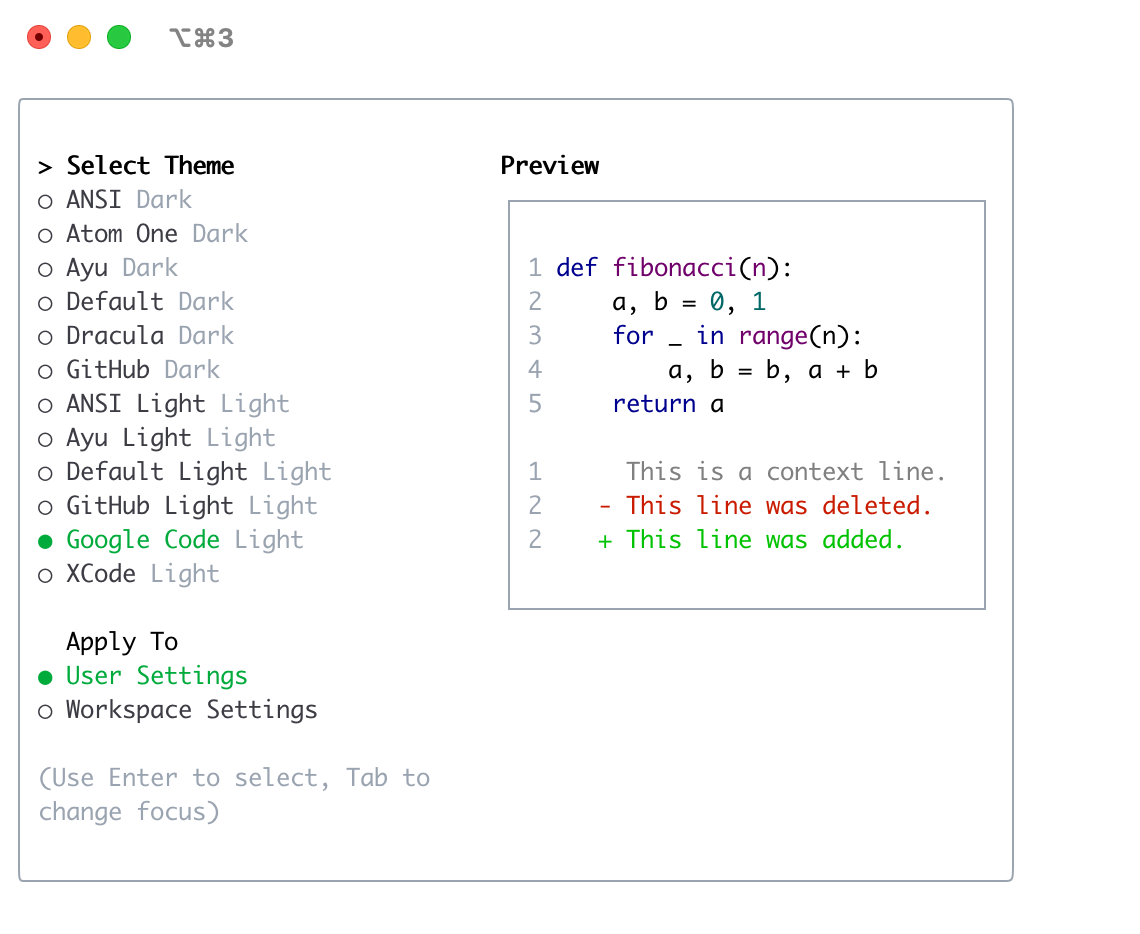
Google Code
Xcode